
Why Growing Businesses Need an Integrated Finance Department
May 26, 2026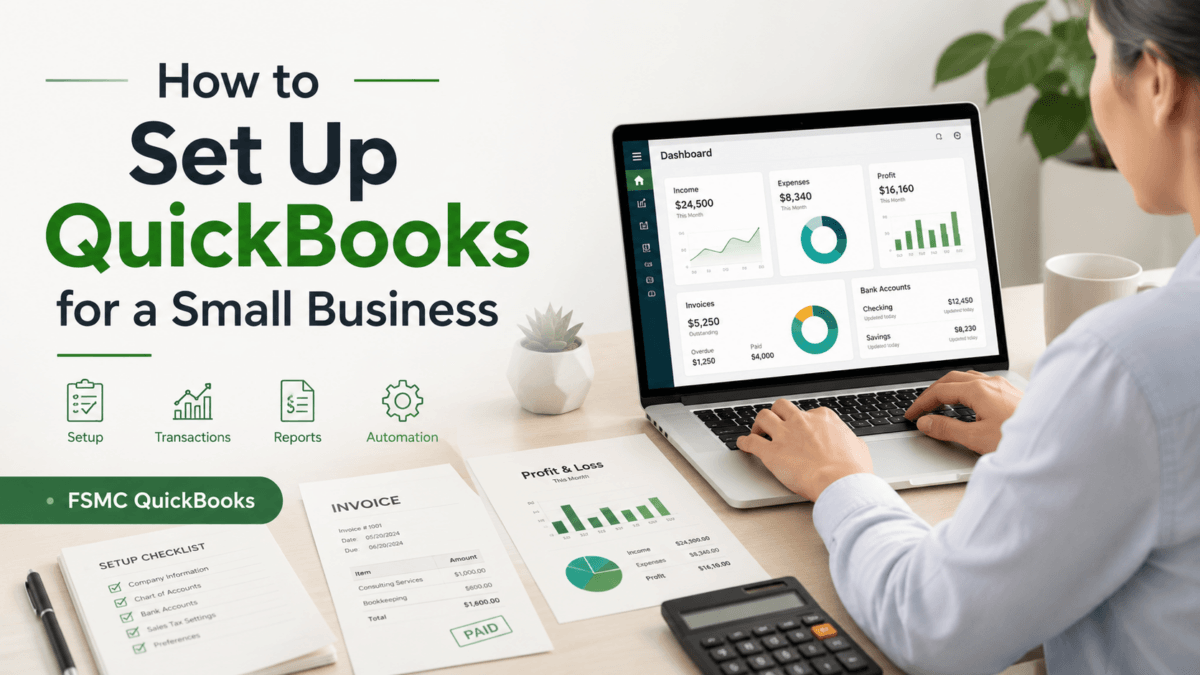
QuickBooks Setup for a Small Business
Compliments of FSMC Bookkeeping Services
Setting up QuickBooks for your small business can streamline your accounting process, providing you with the tools necessary to keep your finances organized. QuickBooks is a powerful software, and knowing how to set it up correctly is crucial for maximizing its potential. This guide will provide small business owners with step-by-step instructions on how to effectively configure QuickBooks to meet their unique needs.
Step 1: Choose the Right Version of QuickBooks
The first step in setting up QuickBooks is choosing the version that best fits your business needs. QuickBooks offers several versions, including QuickBooks Online, QuickBooks Desktop, and QuickBooks Self-Employed:
- QuickBooks Online: Ideal for businesses looking for flexibility and mobility.
- QuickBooks Desktop: Suitable for those who prefer a software-based solution with robust features.
- QuickBooks Self-Employed: Best for freelancers and solo entrepreneurs tracking income and expenses.
Step 2: Create Your Company Profile
Once you have selected your QuickBooks version, the next step is creating your company profile. This involves entering essential information, including:
- Your business name
- Your industry
- Your contact information
- Your business structure (sole proprietorship, LLC, etc.)
This information will help QuickBooks tailor its features to suit your specific business needs.
Step 3: Set Up Your Chart of Accounts
The Chart of Accounts is a crucial aspect of your QuickBooks setup. It categorizes all your business transactions. QuickBooks provides a default Chart of Accounts, but you can customize it based on your business requirements:
- Identify income accounts (e.g., sales revenue)
- Identify expense accounts (e.g., utilities, rent)
- Add asset and liability accounts as needed
Step 4: Connect Your Bank Accounts
Connecting your bank accounts to QuickBooks provides you with an automatic feed of transactions. This makes it easier to track expenses, reconcile accounts, and maintain accurate financial records. To connect your accounts:
- Go to the Banking tab.
- Select Connect Account.
- Follow the prompts to securely link your bank account.
Step 5: Set Up Customers and Vendors
To manage sales and expenses effectively, input your customer and vendor lists. This includes:
- Adding customer details for invoicing.
- Adding vendor details for expenses and bill payments.
Maintaining these lists ensures your records are accurate and up-to-date.
Step 6: Customize Your Invoices and Reports
Creating personalized invoices can improve your brand image. QuickBooks allows you to customize templates with your logo, colors, and unique messaging. Additionally, familiarize yourself with custom reports that QuickBooks can generate to get insights into your business’s financial health.
FAQs
1. How long does it take to set up QuickBooks?
The setup process can take anywhere from a few hours to a few days depending on the complexity of your business and how much data you need to input.
2. Do I need accounting knowledge to use QuickBooks?
No, QuickBooks is designed to be user-friendly for business owners regardless of their accounting background, though some basic knowledge will help.
Related QuickBooks Guides
If you are setting up QuickBooks for the first time, these related guides can help you avoid common setup and bookkeeping problems:
- QuickBooks Setup Checklist for New Companies
- Common QuickBooks Mistakes Small Businesses Make
- How to Clean Up Messy QuickBooks Books
- What a QuickBooks Cleanup Service Includes
Conclusion
Setting up QuickBooks for your small business may seem overwhelming, but it is a pivotal step towards organized bookkeeping and efficient financial management. Don’t hesitate to reach out for assistance. At FSMC QuickBooks, we help small businesses stay organized, clean up their books, and manage QuickBooks with confidence.
Ready to set up QuickBooks for your business? Contact us today for a free consultation!