QuickBooks Online Accounts Receivable Management
November 3, 2026
Find and Fix Unapplied Customer Payments | QuickBooks Online
November 3, 2026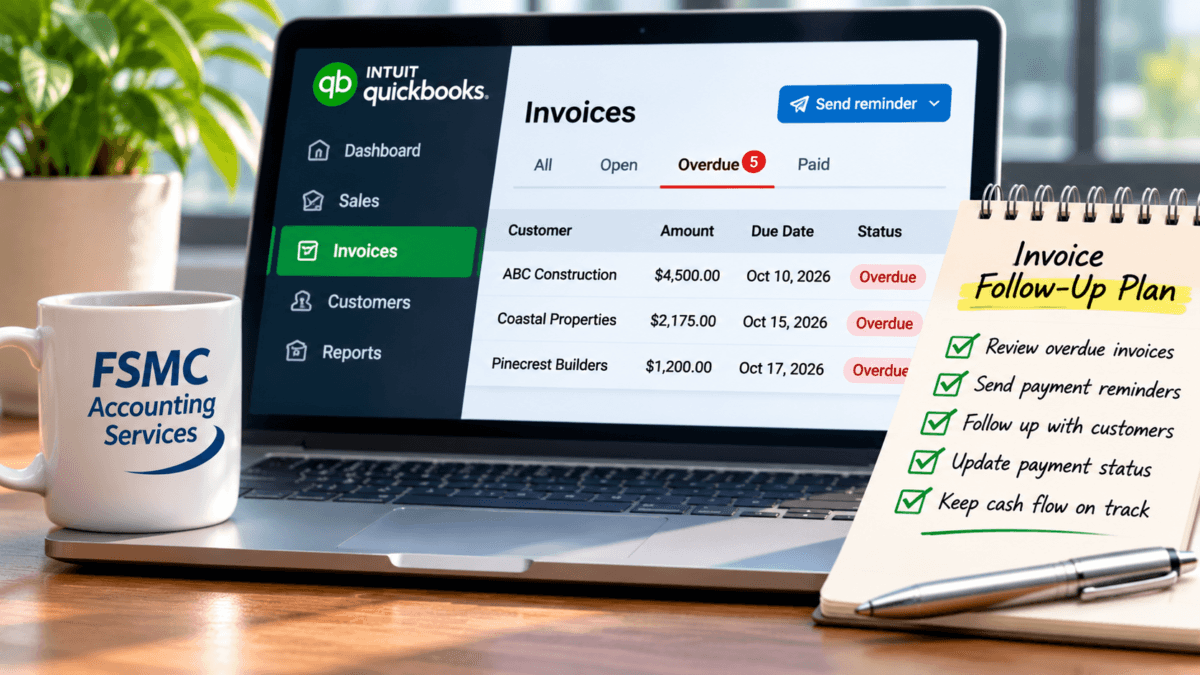
How to Track and Follow Up on Overdue Invoices in QuickBooks Online
Managing overdue invoices is an essential part of maintaining healthy cash flow for your business. QuickBooks Online serves as a powerful tool for identifying overdue invoices, prioritizing follow-up actions, and effectively managing customer communications. In this guide, we will explore how to utilize QuickBooks Online for tracking and following up on overdue invoices, ensuring your collections process is organized and efficient.
Understanding Invoice Management in QuickBooks Online
Before diving into tracking overdue invoices, it’s important to understand how QuickBooks Online handles invoicing and accounts receivable. Each invoice has a due date, and its status can be viewed in various reports and dashboards.
Here’s what you need to know:
– **Invoice Statuses**: An invoice can be marked as “Unpaid,” “Partially Paid,” or “Paid.” Understanding these statuses allows you to gauge how overdue an invoice is.
– **Due Dates**: Each invoice has a specified due date, identified at the time of creation. This helps in tracking when payments are expected.
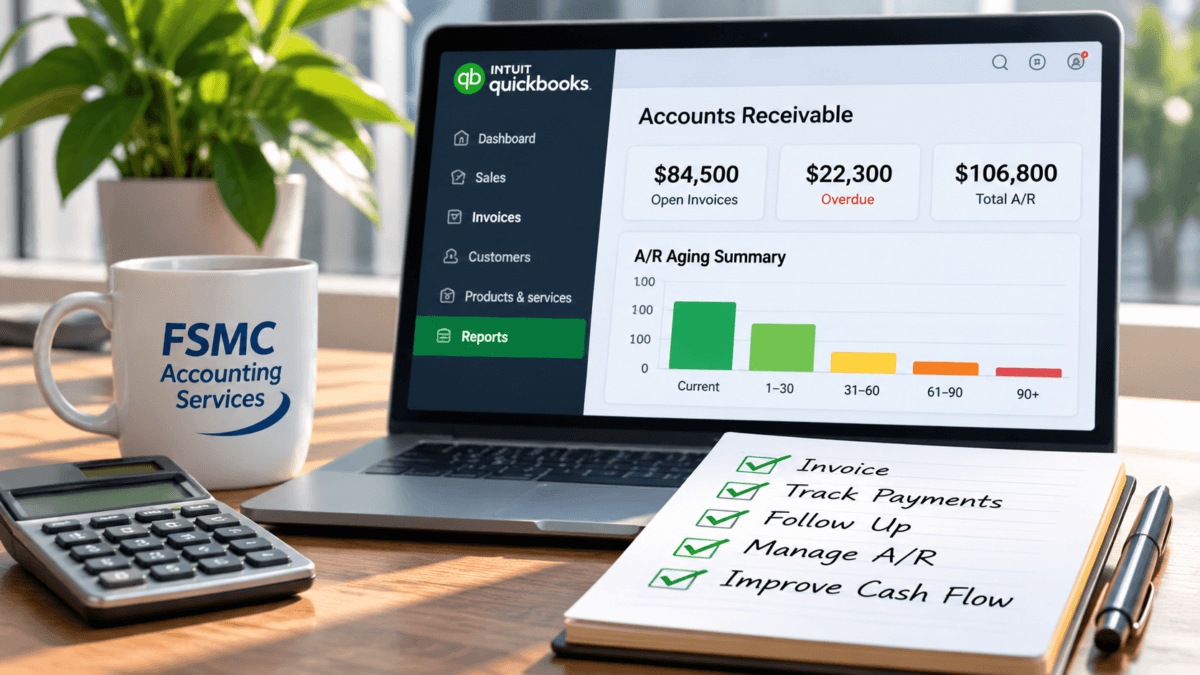
– **Accounts Receivable Aging Summary**: This report categorizes invoices that are overdue by different age brackets, such as 0-30 days, 31-60 days, and so on.
You can view these statuses and reports from the “Sales” section of QuickBooks Online.
Identifying Overdue Invoices
To track overdue invoices efficiently, you first need to locate them. Here’s a step-by-step process to identify overdue invoices in QuickBooks Online:
1. **Log in to QuickBooks Online**.
2. Navigate to the **”Sales” menu** and select **”Customers.”**
3. Click on the **”Manage Invoices”** option.
4. Here, you’ll see a list of all active invoices along with their due dates and statuses.
Once you filter for unpaid invoices, focus on those that have exceeded their due date. These are your overdue invoices.
Prioritizing Follow-Up Actions
After identifying overdue invoices, the next step is to prioritize follow-up actions. Not all overdue invoices are equal; some may have a higher dollar amount or longer overdue status.
Consider these factors when prioritizing:
– **Invoice Amount**: Larger invoices may require more immediate attention.
– **Days Overdue**: Invoices that are significantly overdue should be prioritized for follow-up.
– **Customer Relationship**: Assess the relationship you have with the customer; long-standing relationships may require a more sensitive approach.
Documenting Customer Communications
Maintaining a record of your communications regarding overdue invoices is crucial for accountability and efficiency. QuickBooks Online offers features that can help document these interactions:
1. **Add Notes to Customer Profiles**: After contacting a customer about an overdue invoice, add notes to their profile specifying the date of your communication and its content.
2. **Send Statements**: QuickBooks allows you to send customer statements, summarizing outstanding invoices. This can also serve as a reminder for customers with overdue balances.
Regular documentation helps keep your team informed and secures a trail of efforts made to collect overdue invoices.
Monitoring Payments and Collections
Effective collections go beyond just initial follow-ups. Regular monitoring is essential:
– **Aging Reports**: Regularly review accounts receivable aging reports. These reports show you which invoices remain overdue and help adjust your follow-up strategies.
– **Customer Insights**: Take advantage of insights into customers’ payment patterns available in QuickBooks Online. You can quickly identify customers who consistently pay late, allowing for proactive management.
Establishing Consistent Follow-Up Cadence
To avoid a backlog of overdue invoices, establish a consistent follow-up cadence. Set a schedule for reaching out to customers:
1. **Initial Reminder**: Send a reminder one week after the due date.
2. **Second Reminder**: If no payment is received, follow up again after two weeks.
3. **Final Notice**: If the invoice remains unpaid after 30 days, send a final reminder, potentially with more severe consequences, such as late fees or work stoppage.
Handling Disputes and Escalation Policies
Sometimes disputes regarding invoices can arise. An effective approach to handling these disputes is crucial for maintaining positive customer relationships:
– **Documentation**: Ensure all communications regarding the dispute are documented within QuickBooks.
– **Clear Policies**: Establish internal escalation procedures for disputes that aren’t resolved within a specified timeframe. This indicates to your team when to involve higher management for resolution.
Using Reminder Configuration
QuickBooks Online also provides features to automate reminders for overdue invoices, although these should not be viewed as a replacement for personal communication. Consider configuring reminders to alert you when an invoice becomes overdue, helping streamline your follow-up process.
To set up reminders:
1. Go to the **“Gear” icon** and select **“Account and Settings.”**
2. Navigate to the **”Sales” section.**
3. From here, you can customize invoice reminders based on your company’s needs.
Remember, reminders should complement your communication efforts rather than replace them.
Conclusion
Tracking and following up on overdue invoices is vital for your business’s financial health. By leveraging QuickBooks Online features effectively, maintaining organized records, and establishing a consistent follow-up process, your business can enhance cash flow management and improve collection rates.
If you need further assistance with QuickBooks Online bookkeeping or accounting support, contact FSMC Accounting Services. Our expertise can help you streamline your financial administration and maintain precise records for a thriving business.
For more information about QuickBooks Online accounts receivable management, visit our page here: QuickBooks Online Accounts Receivable Management.
Related QuickBooks Online Resources
#FSMCAccounting #QuickBooksOnline #OverdueInvoices #InvoiceManagement #AccountsReceivable #SmallBusinessTips #CashFlow